
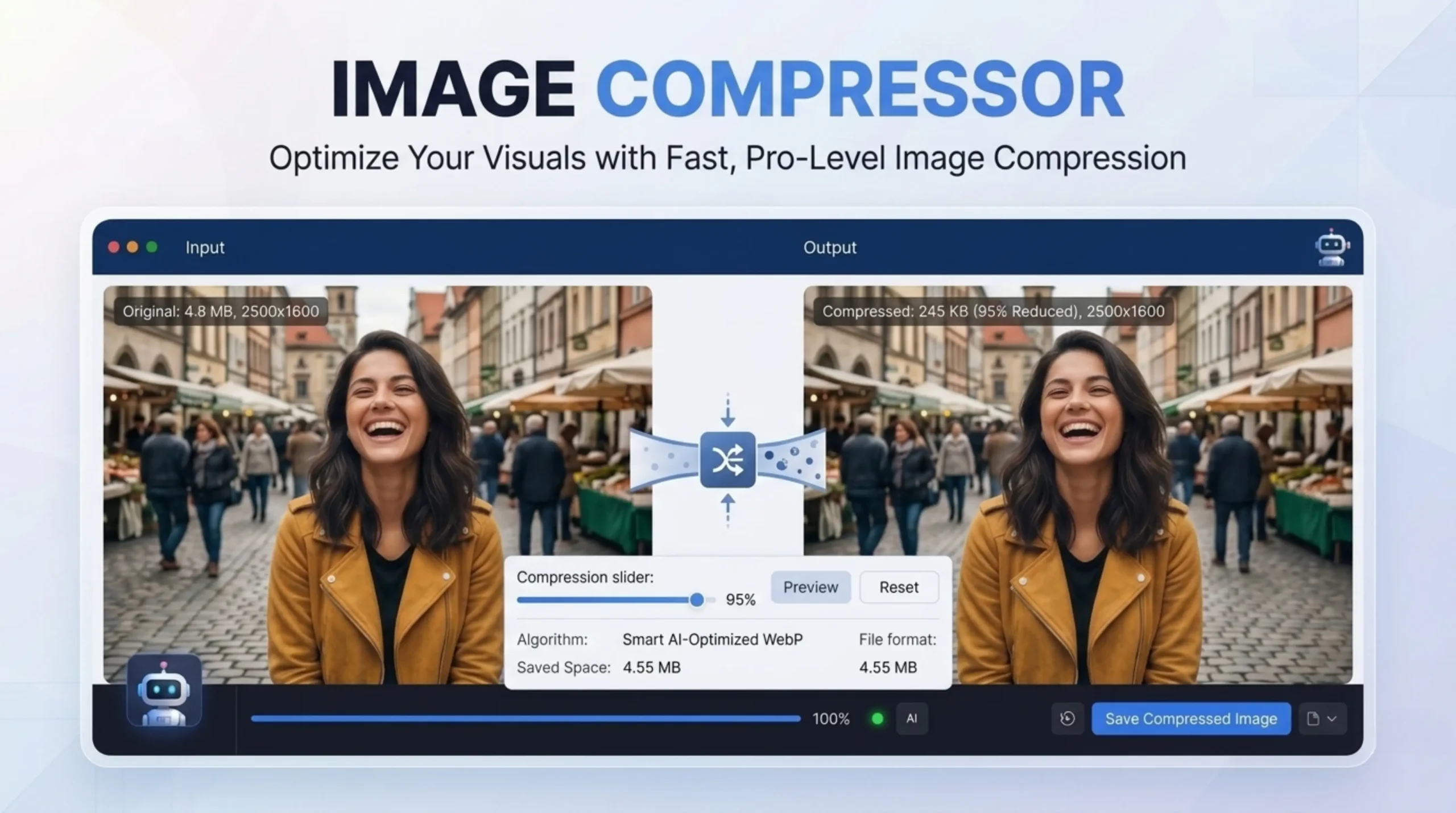
Original Image
Compressed Image
Need Help Using Image Compressor
An image compressor uses powerful algorithms to scan your images and choose the best compression parameters. This process compresses the file to 20% of the original size, with superior visual quality. Image compression is the process of reducing the file size of an image while keeping it looking good enough to your eyes. This is done primarily in two ways: 1) Compression algorithms that change how the image is stored so that it takes up less space (this is much more efficient in areas of the image that have repeated colors or patterns) 2) Removing details that are less important to the human eye (such as small differences in color) That’s the difference between lossless and lossy compression.
Lossy compression cuts file size by throwing away data forever. Lossless compression reduces the size of an image without losing a pixel. Use lossy for photos and complex visuals. Use lossless for screenshots, logos, text, diagrams, transparency, and source files that you might edit again. When properly applied, compression — particularly the current lossy techniques — has a visual image quality indistinguishable from the original, but has significant performance advantages. For most websites, lossy compression is the best. It makes the page load faster, saves storage space and improves Core Web Vitals.
Regular deductions are between 10% and 30%. For example, a 50KB HTML file could be reduced to 35KB after minification. With gzip compression on your server, you could get reductions of 70% or more total. Our image compressor normally reduces size by 60-80% and retains excellent visual quality. The exact compression ratio depends on the original image format, its quality, and its contents. JPEG images often experience the largest size reduction. The variance in results is mostly caused by the amount of whitespace, redundancy and unoptimized metadata in the original file
Intelligent lossy compression techniques reduce file size without any noticeable drop off in image quality, so your visuals remain crisp while your page loads faster. Compression will not hurt image appearance unless you are using extreme lossy compression (like 10% quality) and your images look noticeably degraded. You can’t uncompress a lossy image either, the data is permanently gone. You can open a bad JPEG and save it as a good PNG, but that just puts the bad image into a big lossless file
It reads the original quality setting from the quantization tables in the JPEG file. By default, the target quality is 80, which offers a good compromise between file size and visual quality for most pictures. PNG images are converted to PNG8 which supports a maximum of 256 colors. Great for web graphics, icons, logos, screen shots and illustrations with a limited color palette. Transparency is still there. Most tools support JPG, PNG, WebP, AVIF, HEIC, BMP, TIFF, APNG and more. Covering all the needs for web and digital images on all platforms and browsers.
In 2026 WebP is the best general purpose image format for the web, typically 25-35% smaller than JPEG at the same visual quality, and supports transparency like PNG. Serve most images and graphics as WebP, AVIF when you need the best compression, SVG for logos and icons and use JPEG/PNG only as a fallback for older browsers. AVIF is the newest, most efficient image format, offering files 50% smaller than JPEG and 20-30% smaller than WebP at the same quality. Switching from JPEG to AVIF typically saves 40-50% bandwidth.
Image compression will help your SEO a lot. Page speed and Core Web Vitals are important ranking factors for Google. By compressing your images you are speeding up your site which will help improve these metrics and can help boost your rankings. A Google study shows that 45% of visitors are less likely to return to the website after a less-than-pleasant first visit. Google has also confirmed that page speed is a major ranking factor on SERP’s. If you’re running an e-commerce site, blog or portfolio website, lossy compression might be a better choice. It can greatly reduce the file size, which helps with site performance, user experience, and SEO ranking.
For maximum security all compression happens locally in your browser – your images will never leave your device or get uploaded to servers. This ensures the privacy and data security of your compressed images. Tools that do upload to servers upload images using a secure 256-bit encrypted SSL connection and are automatically deleted within 6 hours. No software installation, no registrations, no watermarks added to your compressed files. When using any tool, always check the privacy policy, especially if you’re working with sensitive or proprietary images for a business.
Batch compression lets you upload and compress several images at the same time. Choose more than one file, set the compression level only once and have all your images processed together. Download individual files or a ZIP file of all compressed images. You can compress up to 50 images at a time, and even large images are compressed in seconds. You can also adjust the quality using a visual editor before downloading, meaning you’re in full control over the final output without having to process each file one by one.
Large images can hurt your site’s performance, which affects both user satisfaction and SEO. This could be a site that is slow, unresponsive, or simply down. You can improve the images by lowering the resolution or by compressing the image data in the file. fast website load + reduce file size For speed and “normal” images, use lossy compression. If you want clarity and have critical visuals, use lossless compression. The key is balance – your site will perform better and be a higher quality Do not delete or zip up your original files as you will need these later for editing.